










Packaging types in this collection
Boxes
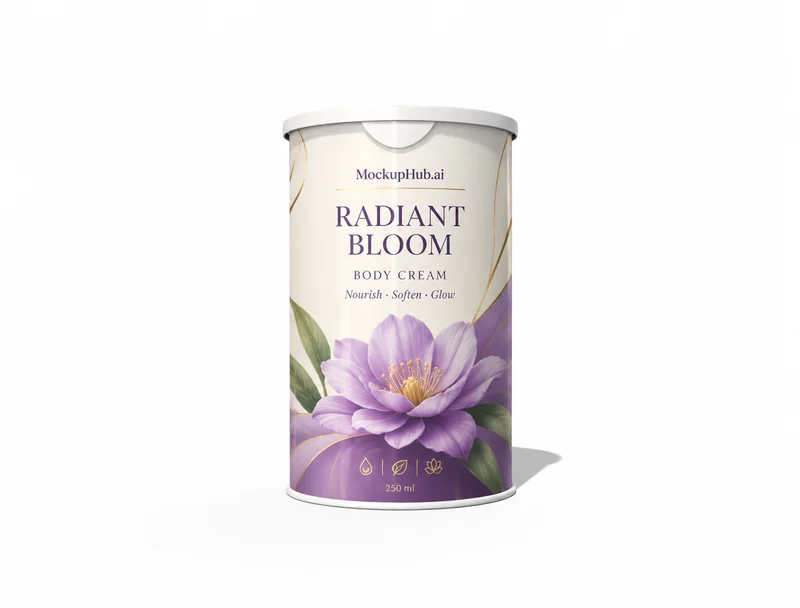
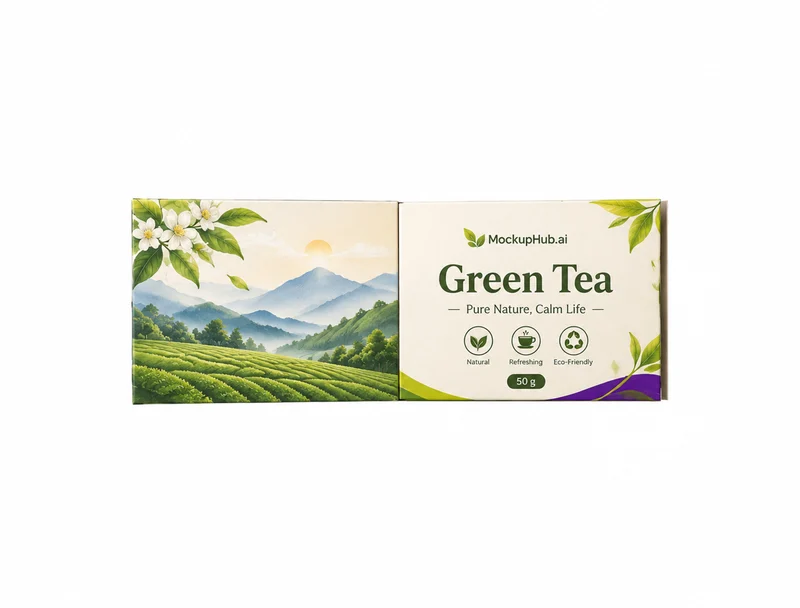
Review artwork across panels, folds and lids. Choose a box mockup whose structure resembles your retail carton or gift package.
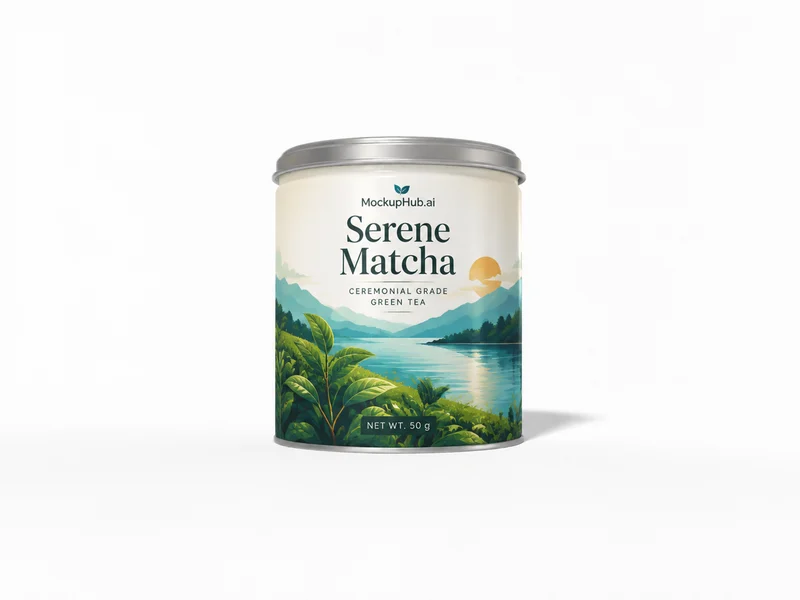
Explore boxesJars
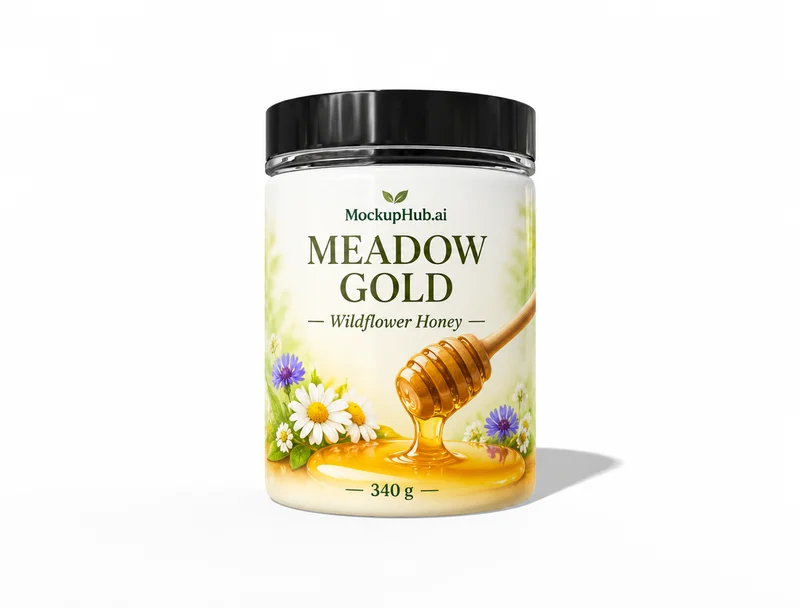
Check the front label around a wider cylindrical body. The current jar templates use plastic presets, so compare the specified surface before planning a glass presentation.
Explore jarsCans
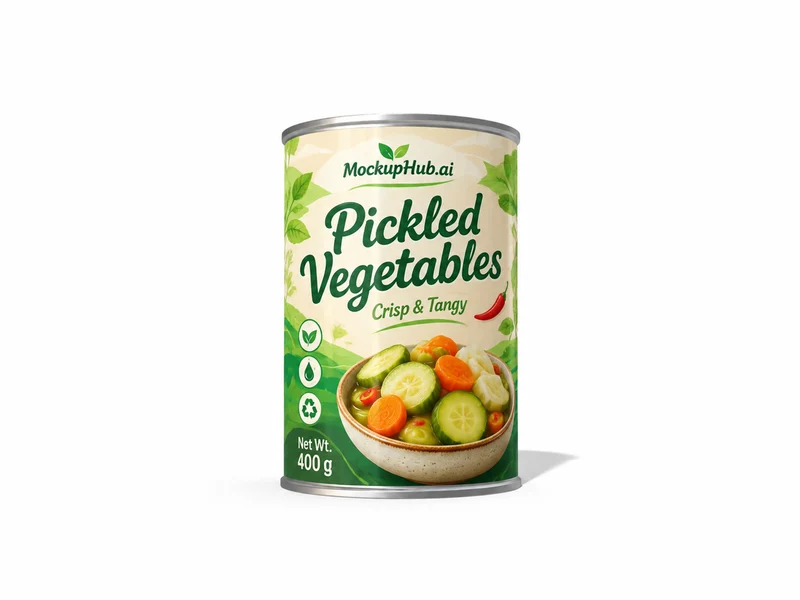
Compare a beverage label against matte or glossy metal. Inspect the shoulder and base so important text stays on the readable body.
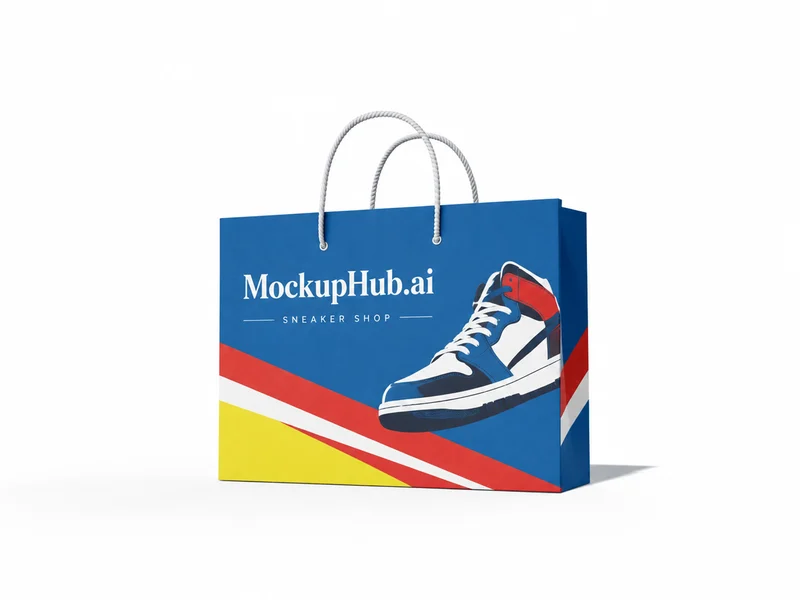
Explore cansBags
Present retail graphics on a handled package. Check its body proportions and material rather than treating every bag as a stand-up pouch.
Explore bagsHow to choose a packaging mockup
Match the package shape
Match the package outline before placing the design. Cartons have panels and folds; cans have curved walls; jars add shoulders and lids. Compare the usable artwork area with your supplier’s drawing, keeping names clear of closures.
For a pouch mockup, check the actual construction. A flat sachet has sealed edges; a stand-up bag needs a supporting base. Capacity alone does not tell you the label dimensions.
Check the editable areas
Upload a simple test design to locate the artwork boundary. Check whether the selected template offers separate body, lid or cap colors. Changing a part color leaves text and backgrounds saved in your upload unchanged.
Use transparent artwork when the container should show around the graphic. For a label design mockup, rotate toward the back join to catch stretching before adding the final label.
Compare the surface finish
Keep the artwork and camera angle fixed while comparing finishes in a 3D packaging mockup. Matte surfaces soften reflections; glossy surfaces can put a bright highlight across small text. Check the name from both front and side views.
Choose only the material presets the template offers. A tint cannot add kraft texture or turn plastic into metal. Confirm the real finish with your supplier’s sample.
Export formats and image dimensions
Use 2K (2048-pixel long edge) for product images, 4K (4096) for larger presentations and 8K (8192) for detailed crops. The other dimension follows your aspect ratio. Start with a sharp upload.
Choose PNG for transparency or crisp edges; JPG for smaller opaque images. Check small text again after resizing or cropping. Check web pixel requirements or the printer’s PPI for printed presentations. Your packaging mockup is a presentation image. Supply original artwork with package dimensions and bleed separately.
Common ways to use these previews
Compare food-label hierarchy around a jar before presenting the front view.
Show a skincare tube beside its outer carton for a range review.
Check a coffee label against a flexible pack’s visible sealed edges.
Prepare consistent ecommerce angles for several beverage flavor designs.
Review retail-bag graphics with a client before ordering printed samples.
Frequently asked questions
Can I edit the label and container separately?
Check the selected template’s artwork area and part controls. A body or cap color can be separate from your uploaded graphic, but that does not mean every surface has its own editable label.
Which packaging mockup fits my product?
Match the structure first: carton panels, a jar’s straight wall or a flexible pack’s seals. Compare those proportions with the supplier’s drawing, then test your design on the model before choosing the final camera angle.
What should I check in a free packaging mockup?
Check editable areas, resolution and usage terms against the job you need to finish. Read the tool’s current pricing and export conditions before relying on it for client delivery.
Can I change kraft, plastic or metal appearances?
Use the material presets available in your selected template and keep the view fixed while comparing them. A color adjustment changes the tint; it does not add a kraft texture or turn plastic into metal.
How do I stop a label looking stretched?
Keep the original artwork’s proportions and match the model’s label area to your actual package. Rotate to check the sides and back join, rather than judging placement from a front view alone.
How much resolution does an online listing need?
Use the destination’s required pixel dimensions, allowing for its crop or zoom view. Exporting at 8K cannot recover detail missing from a small uploaded label, so check the source image first.
Compare packaging mockups with your own artwork and a package shape that matches your product. Choose a template, check the controls and prepare the view you need.