

Templates you can work with
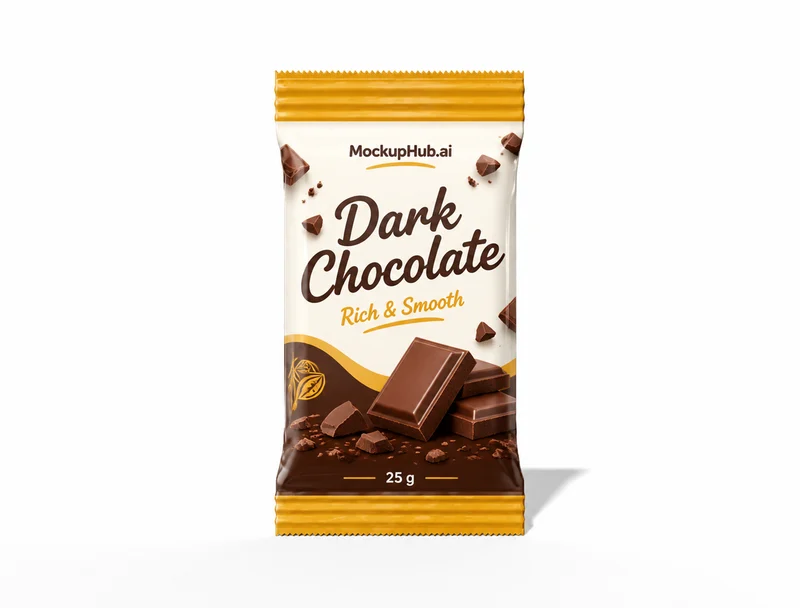
Food Sachet Packaging
Arrange a product name on the food sachet’s flat front, clear of the sealed edges. Compare matte and glossy plastic with the artwork fixed to spot reflections over small text.
View templateMetallic Trading Card Pack
Use the upright trading-card pack to review collector artwork and a prominent front title. Check metallic reflections beside the seals before choosing a matte or glossy appearance.
View templateHow to choose a pouch mockup
Check the pack construction
Choose a pouch mockup by its base, closure and sealed edges. The current sachet and trading-card pack suit flat-pack projects. A stand-up coffee bag needs a different base and closure, and may need a valve.
Compare the front panel with the supplier’s drawing before sizing the artwork. Keep the name within the readable body rather than stretching the design across seals or filling space the actual package cannot print.
Leave room for sealed edges
Mark the front center and safe area in a test upload. Check how the side seals, top closure and folds meet that boundary, then rotate to inspect the edges. Keep essential text within the supplier’s printable region.
Use transparent margins only where they belong in the design. Inspect the selected template’s artwork and part controls before editing; changing the pack color does not remove a background saved in your image.
Compare the film appearance
Keep the product name on the readable body and compare its contrast beside folds and reflective edges. Hold the camera and artwork steady while trying the available film appearances. A bright highlight can hide thin lettering near the side.
Review the result at store-card size, then confirm the physical film and print process with the pack supplier. A rendered surface cannot establish the package’s barrier or sealing performance.
Export formats and image dimensions
Use 2K (2048-pixel long edge) for pack proposals, 4K (4096) for larger presentations and 8K (8192) for detailed crops. The other dimension follows your aspect ratio. Start with a sharp upload.
Choose PNG for transparency or crisp edges; JPG for smaller opaque images. Check small text again after resizing or cropping. Check web pixel requirements or the printer’s PPI for printed presentations. Your pouch mockup is a presentation image. Supply original artwork with package dimensions and bleed separately.
Common uses for this collection
Review a food sachet’s main product name.
Compare graphics on a metallic trading-card pack.
Inspect a pattern as it approaches a sealed edge.
Present alternative front-panel designs to a packaging client.
Prepare matching views for several sachet-label concepts.
Frequently asked questions
Which pouch mockup fits my project?
Match the base, closure and sealed edges to your actual package before placing artwork. Flat sachets and trading-card packs are useful examples here; keep their front-panel proportions rather than stretching a design to another construction.
What can I edit in a pouch mockup?
Upload your design to the template’s artwork area. Check its available body color controls and material presets before editing; a product-color change is separate from the graphic saved in your image.
Where should the product name sit in a flat pouch mockup?
Use the uninterrupted center of the front panel and leave space beside the seals. Keep the complete pack visible while judging the name against its actual outline.
How do I check artwork direction in a sachet mockup?
Start with a top arrow and front-center marker in a test upload. Inspect the front, back and sealed edges before replacing those marks with the finished layout.
How do I compare reflections in a flexible packaging mockup?
Hold the artwork and camera steady while trying the appearances offered by that pack. Inspect thin lettering beside folds and reflective edges, then reduce the image to its destination size.
Which views should I export from a 3D pouch mockup?
Use a readable front view for the product name and an angle for the closure and pack depth. Keep the same artwork proportions in both views so the client can compare placement.
Preview pouch mockups with your own artwork and compare the result from a readable angle. Choose a matching template to start your design.