


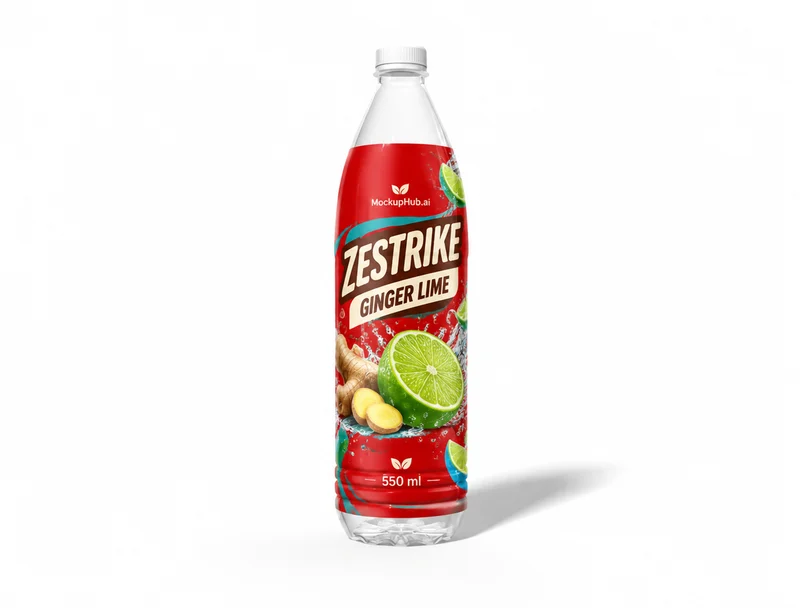
Templates you can work with
500 ml Plastic Bottle
Review drink branding on a 500 ml bottle. Compare transparent-plastic appearances and check the label against the cap color.
View template550 ml Water Bottle
Place a label on the 550 ml water bottle. Inspect typography around the curve before choosing a front presentation angle.
View template550 ml Water Bottle
Use this 550 ml bottle for a glossy transparent-plastic view. Check small label details where reflections cross the container.
View templateHow to choose a bottle mockup
Match the wall and shoulder
Choose a bottle mockup with a straight label wall and shoulder that match your container. Check the available label height against the supplier’s drawing rather than relying on capacity or overall height. Leave the cap visible while judging the proportions.
Keep the product name below the shoulder and above the lower curve. Rotate toward the side to check where the design disappears, without stretching the uploaded logo.
Check the label, fill and cap
Start with a front-center marker, then inspect the back join and transparent label margin. A circular mark helps reveal stretching around the body before you add small ingredients or instructions. Keep the source artwork’s proportions intact.
Check the fill, body and cap controls available on the selected bottle. Change one at a time so you can distinguish the container’s appearance from colors already saved inside the label.
Keep the name clear of reflections
Show the complete bottle while checking reflections around the product name. A highlight that suits the cap may hide pale label edges on the body. Compare available plastic appearances with the artwork and view held constant.
Inspect the design again at its final store-image size. A clear-looking model still uses the specified template material; confirm the actual bottle and label finish with the supplier before production.
Export formats and image dimensions
Use 2K (2048-pixel long edge) for bottle listings, 4K (4096) for larger presentations and 8K (8192) for detailed crops. The other dimension follows your aspect ratio. Start with a sharp upload.
Choose PNG for transparency or crisp edges; JPG for smaller opaque images. Check small text again after resizing or cropping. Check web pixel requirements or the printer’s PPI for printed presentations. Your bottle mockup is a presentation image. Supply original artwork with package dimensions and bleed separately.
Common uses for this collection
Compare flavor labels on a clear-looking drink bottle.
Inspect a back-label join before a client review.
Test lid contrast against a beverage identity.
Prepare matching front views for a water-bottle range.
Check a pale label against glossy and matte plastic appearances.
Frequently asked questions
Which bottle mockup fits my project?
Choose by the straight label wall, shoulder and body proportions. These bottle templates use plastic presets; check the actual container drawing instead of assuming that a clear-looking model represents glass or a particular label size.
What can I edit in a bottle mockup?
Upload your design to the template’s artwork area. Check its available body, fill and lid color controls and material presets before editing; a product-color change is separate from the graphic saved in your image.
Does capacity tell me which water bottle mockup to use?
Compare the straight label wall and shoulder as well as the named volume. Containers with similar capacity can still frame the same label at different heights and widths.
How do I check clear margins in a plastic bottle mockup?
Upload artwork with transparent space where the bottle should remain visible. Inspect the front and side to catch an opaque background rectangle or a pale edge lost against the body.
How do I find the back join in a bottle label mockup?
Add front-center and back-join marks to a test design, then rotate the bottle. Check the reading direction and keep important text away from that join before loading the final label.
Which angle keeps text readable in a 3D bottle mockup?
Begin near the front with the cap and base visible. Turn slightly to show the shape while keeping bright highlights clear of the main product name.
Preview bottle mockups with your own artwork and compare the result from a readable angle. Choose a matching template to start your design.