


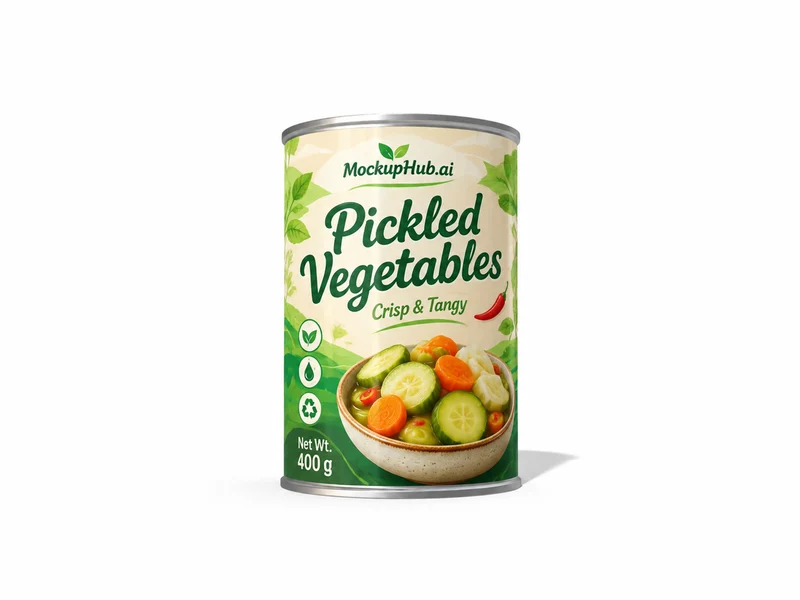


Templates you can work with
237 ml Standard Soda Can
Check a 237 ml soda design on the can body. Compare lid and pull-tab colors against matte or glossy metal.
View template330 ml Beer Can
Review beer branding on the 330 ml can. Rotate the artwork to inspect ingredient text and the front label hierarchy.
View template330 ml Soda Aluminum Can
Use the 330 ml soda format for flavor graphics. Check the main color block against the metal appearance and lid.
View templateAluminum Energy Drink Can
Compare energy-drink typography around the aluminum can. Inspect thin lettering near highlights before selecting a matte or glossy presentation.
View templateHow to choose a can mockup
Fit the straight can body
Choose a can mockup by the straight body between its shoulder and lower rim. A tall energy-drink shape and a shorter beverage can frame the same label differently. Match height and diameter to the supplier’s drawing before placing the design.
Keep the name on the readable front, preserving the logo’s proportions. Rotate toward the side to see where supporting text begins to turn out of view.
Check the front and back join
Add front-center and back-join markers to a test layout. Rotate the can to check the wrap direction and whether the join interrupts a word or pattern. Keep important details away from the shoulder and lower rim.
Check the selected template’s artwork region before comparing available lid or body colors. Those controls change the surrounding parts; they do not recolor wording already saved in the uploaded design.
Compare metal reflections
Hold the view and label fixed while comparing matte and glossy metal. Inspect thin lettering on the front and side, where a highlight may hide detail that looked clear in a straight view. Check the result at listing size.
Choose the camera angle that keeps the product name legible. Confirm the actual metal finish and print process with the can supplier, using a physical sample for final color approval.
Export formats and image dimensions
Use 2K (2048-pixel long edge) for beverage listings, 4K (4096) for larger presentations and 8K (8192) for detailed crops. The other dimension follows your aspect ratio. Start with a sharp upload.
Choose PNG for transparency or crisp edges; JPG for smaller opaque images. Check small text again after resizing or cropping. Check web pixel requirements or the printer’s PPI for printed presentations. Your can mockup is a presentation image. Supply original artwork with package dimensions and bleed separately.
Common uses for this collection
Compare flavor colors across a soda-can range.
Inspect a beer label around the back of the can.
Review an energy-drink logo against a metal finish.
Prepare front and angled views for a juice launch.
Discuss the placement of a cylindrical tin’s main graphic.
Frequently asked questions
Which can mockup fits my project?
Match height and diameter before placing the label. A short beverage can and a taller energy-drink shape frame the design differently, so check the straight body, shoulder and lower rim rather than choosing by volume alone.
What can I edit in a can mockup?
Upload your design to the template’s artwork area. Check its available lid, body and fill color controls and material presets before editing; a product-color change is separate from the graphic saved in your image.
How do I choose between shapes in a soda can mockup?
Compare the straight body, shoulder and lower rim with the product you plan to present. Keep the same logo proportions while checking how much front-facing space each shape provides.
Why is small type hard to read in an aluminum can mockup?
Rotate slightly to check whether a metal highlight crosses the lettering. Compare available finishes with the design held steady, then check a reduced copy at the final listing size.
How do I keep the name visible in a beverage can mockup?
Place the main name near the readable front center and move supporting text toward the sides. Check both a straight view and an angle before deciding the final crop.
How do I compare flavors in a 3D can mockup?
Use matching angles, label alignment and surrounding space for every flavor. Review the names together at store-card size so one version is not hidden by a different reflection or crop.
Preview can mockups with your own artwork and compare the result from a readable angle. Choose a matching template to start your design.