


Templates you can work with
Cosmetic Tuck-End Box
Review beauty branding on a tuck-end carton. Keep product information clear of panel edges and inspect the closure area.
View templateOpen Folding Box
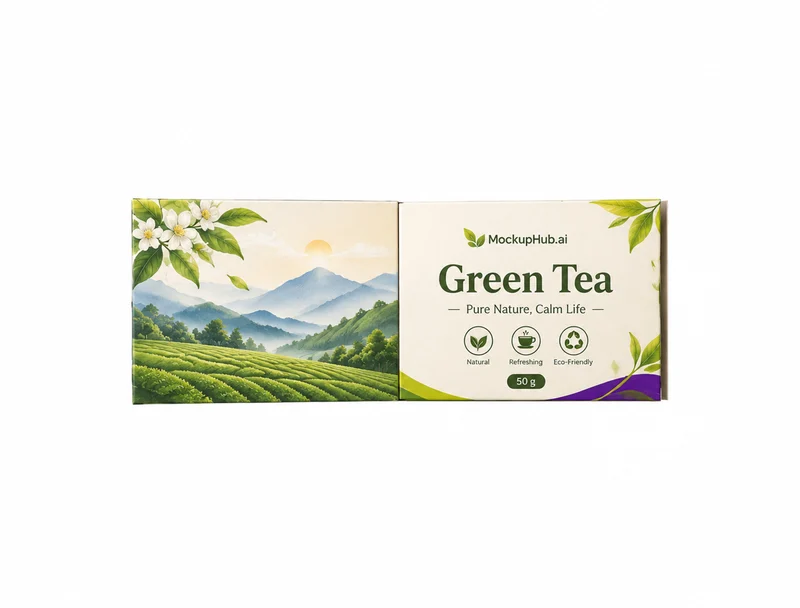
Inspect artwork on the open folding box. Compare the exposed front cover with adjoining panels in the supplied white-board appearance.
View templateRound Birthday Gift Box
Check celebration artwork around a round gift box. Compare the body, lid and ribbon colors without flattening the curved design.
View templateFood Tuck End Box
Present food graphics across the tuck-end package panels. Compare its glossy and matte appearance options before approving the visual direction.
View templateHow to choose a box mockup
Match the opening and folds
Choose a box mockup by its opening structure. A tuck-end carton, folding box and round gift box have different lids and printable faces. Compare the front, side and top with the supplier’s drawing before positioning the name.
Keep important wording away from folds and closing edges. Rotate to check how neighboring panels meet, preserving the logo’s proportions instead of stretching it to fill an unsuitable face.
Test the panel layout
Place a clear top marker in a test upload before adding the finished artwork. Check which face becomes the front and whether the side or lid appears reversed when the box is assembled.
Keep backgrounds and text within the supplier’s panel boundaries. Change available part colors separately from the uploaded graphic, then rotate the box to inspect the corners and the join between adjacent printed faces.
Check the board and finish
Compare kraft and white board with the same artwork and view. A pale logo may need more contrast on brown paper; a glossy appearance can put reflections across fine type. Use the presets available on the selected template.
Keep the lid and flaps visible when presenting the opening direction. Confirm board thickness and the physical finish with a sample before sending the final artwork to print.
Export formats and image dimensions
Use 2K (2048-pixel long edge) for carton proposals, 4K (4096) for larger presentations and 8K (8192) for detailed crops. The other dimension follows your aspect ratio. Start with a sharp upload.
Choose PNG for transparency or crisp edges; JPG for smaller opaque images. Check small text again after resizing or cropping. Check web pixel requirements or the printer’s PPI for printed presentations. Your box mockup is a presentation image. Supply original artwork with package dimensions and bleed separately.
Common uses for this collection
Present a skincare carton with its front and side panels visible.
Check a gift-box lid before proposing a ribbon color.
Compare brand placement on an open folding package.
Prepare matching angles for a food-product range.
Discuss panel orientation with a carton supplier before sampling.
Frequently asked questions
Which box mockup fits my project?
Choose the opening structure before the graphic: a tuck-end carton, folding box and round gift box have different panels. Compare the model with your supplier’s drawing, including which face becomes the front and where the lid closes.
What can I edit in a box mockup?
Upload your design to the template’s artwork area. Check its available body color controls and material presets before editing; a product-color change is separate from the graphic saved in your image.
How do I find the front panel in a 3D box mockup?
Upload a test layout with a front marker and an arrow pointing up. Rotate the assembled box to check the lid and neighboring faces before replacing it with the finished design.
Why is a logo cut off in my product box mockup?
Check whether the graphic crosses a fold, flap or the edge of the selected artwork region. Move essential wording inside the intended face while keeping the original logo proportions.
How can I compare kraft and white board in a carton mockup?
Use the same artwork and angle on a template that offers those appearances. Inspect pale lettering against the brown surface before changing the graphic itself.
Which views make a retail packaging mockup easier to review?
Show the main face with an adjacent side so the product name and panel relationship are clear. Add an opening or lid view when the closure is part of the design decision.
Preview box mockups with your own artwork and compare the result from a readable angle. Choose a matching template to start your design.