


Templates you can work with
Jar
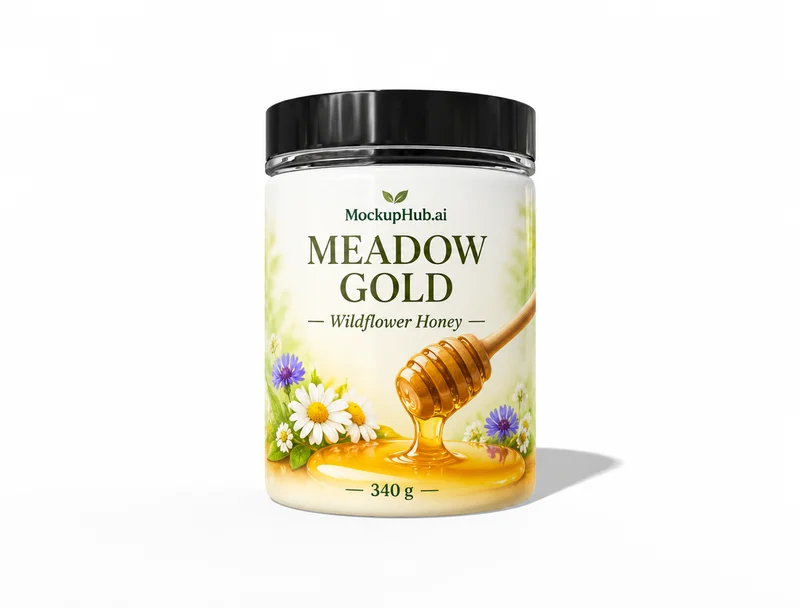
Review jar artwork on the supplied label layout. Compare glossy and matte plastic while adjusting the lid and body colors.
View templatePlastic Jar
Use the wide-label jar for a broader composition. Rotate it to check how the front panel meets the side artwork.
View templateWhite Plastic Jar
Check label contrast against the white jar presentation. Inspect pale edges before comparing the available plastic appearance and part-color controls.
View templateHow to choose a jar mockup
Check the straight label wall
Choose a jar mockup by the straight wall beneath its shoulder. Compare that label height with the lid and body proportions, then check the supplier’s container drawing. A similar capacity can still give your design a different amount of readable space.
Keep essential text off the shoulder and lower curve. Rotate toward the side to check where the label leaves view without widening the original logo.
Test the label and lid
Use a circular test mark and a clear front center to spot stretching around the body. Check the back join and transparent margin before uploading the finished label. Keep the artwork’s original proportions throughout the comparison.
Try the lid and body colors offered by that template separately. A part-color control changes the container, while wording and background colors saved inside the uploaded label remain in the image.
Compare matte and glossy plastic
Compare matte and glossy plastic with the label and camera held steady. Check whether pale edges disappear against a clear-looking body or a bright reflection crosses the product name. Return to the final store-image size before deciding.
These templates use plastic appearances. Choose the preset that matches the proposal and confirm the real container with the supplier before presenting it as a different material, including glass.
Export formats and image dimensions
Use 2K (2048-pixel long edge) for jar listings, 4K (4096) for larger presentations and 8K (8192) for detailed crops. The other dimension follows your aspect ratio. Start with a sharp upload.
Choose PNG for transparency or crisp edges; JPG for smaller opaque images. Check small text again after resizing or cropping. Check web pixel requirements or the printer’s PPI for printed presentations. Your jar mockup is a presentation image. Supply original artwork with package dimensions and bleed separately.
Common uses for this collection
Compare a cream label with a contrasting jar lid.
Review a food-brand front panel around a wide container.
Show a client how a wraparound label meets at the back.
Prepare consistent views for several scent or flavor labels.
Check whether pale artwork separates from a transparent-looking body.
Frequently asked questions
Which jar mockup fits my project?
Start with the usable straight wall below the shoulder, then compare the lid and body proportions. These templates use plastic appearances; a clear-looking preview should not be presented as a glass jar.
What can I edit in a jar mockup?
Upload your design to the template’s artwork area. Check its available lid and body color controls and material presets before editing; a product-color change is separate from the graphic saved in your image.
How do I check label height in a 3D jar mockup?
Keep the lid and base visible while comparing the straight wall below the shoulder. Place essential wording within that wall, then turn the jar to inspect the curved edges.
Why does a round logo stretch in my jar label mockup?
Check the source image proportions and how they fit the selected label region. Test a circle and front-center marker before adjusting the final label placement.
How do I compare finishes in a plastic jar mockup?
Keep the artwork, view and lid color fixed while switching between the available plastic appearances. Check whether reflections hide the product name or pale label edges at listing size.
How can I compare a skincare range in a cosmetic jar mockup?
Keep each label at a comparable height and use the same camera direction. Change the product name or colorway in the source artwork, then inspect the whole range at its intended display size.
Preview jar mockups with your own artwork and compare the result from a readable angle. Choose a matching template to start your design.