

Templates you can work with
120 x 60 x 120 mm Block Desk Calendar
Inspect numerals and branding across the block-calendar faces. Check orientation on each visible block before sharing the desk presentation.
View templateDesktop Calendar
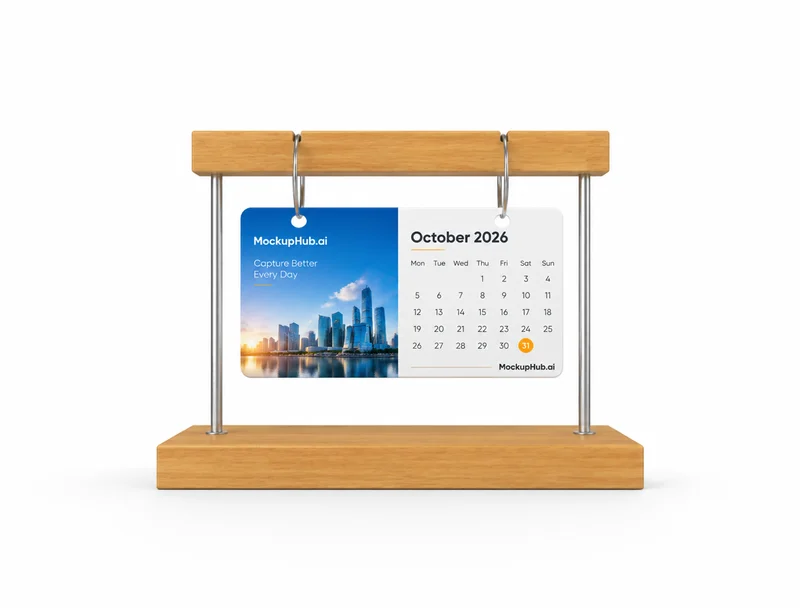
Review a monthly calendar layout with its binding rings visible. Compare the available stand colors against the page design.
View templateHow to choose a calendar mockup
Choose blocks or bound pages
Choose a calendar mockup by its block arrangement or bound-page format. Compare the visible date area, stand and proportions before arranging the month design. Blocks, rings and page edges can limit where small numbers remain readable.
Keep essential dates clear of those boundaries and preserve the source layout’s proportions. Check the printer’s actual page or block dimensions before using the render to judge the final type size.
Check dates beside the stand
Check the month name and small numerals beside the rings, blocks or stand. Start with a simple date layout to locate the artwork area, then inspect any edge that hardware obscures before adding the finished design.
Compare available support or part colors with the month artwork held steady. Changing the object leaves the uploaded dates unchanged, so correct wording, alignment and background colors in the source image.
Proofread the original date artwork
Compare the selected month in the product view with the original date file. A clear presentation can still contain an incorrect weekday alignment, so check every date before sharing the design. Keep the stand or block arrangement visible in an overview.
Review small numerals at the intended reading size. Send the printer the original production layout and confirm its trim, binding clearance and date sequence in the proof.
Export formats and image dimensions
Use 2K (2048-pixel long edge) for calendar listings, 4K (4096) for larger presentations and 8K (8192) for detailed crops. The other dimension follows your aspect ratio. Start with a sharp upload.
Choose PNG for transparency or crisp edges; JPG for smaller opaque images. Check small text again after resizing or cropping. Check web pixel requirements or the printer’s PPI for printed presentations. Your calendar mockup is a presentation image. Supply original flat artwork with trim, bleed and safe area separately.
Common uses for this collection
Review a company identity above a monthly date grid.
Compare block-calendar face colors for a desk gift.
Check weekday labels clear of binding rings.
Prepare an online image of a branded desktop calendar.
Present a custom month layout before printer proofing.
Frequently asked questions
Which calendar mockup fits my project?
Choose between the block-style and bound desktop constructions. Each needs its own date artwork and reading direction, so check the month name, page boundary and binding rather than treating their surfaces as interchangeable.
What can I edit in a calendar mockup?
Upload your design to the template’s artwork area. Check its available body color controls and material presets before editing; a product-color change is separate from the graphic saved in your image.
How do I choose blocks or pages in a desk calendar mockup?
Match the date artwork to the object’s construction before placing the brand. Blocks need an orientation check on each visible face, while bound pages need room beside the rings and stand.
How do I keep dates clear in a desktop calendar mockup?
Inspect small numerals beside the binding or stand at the intended presentation size. Keep the month name and essential numbers inside the readable area before choosing an angled view.
How do I compare stand colors in a branded calendar mockup?
Keep the month artwork fixed while trying the available support colors. Check the complete calendar so the stand frames the dates without competing with the company identity.
Does the tool generate or verify the calendar dates?
Prepare and proofread the date grid in your original artwork. Check the year, weekday alignment and month lengths there, then use the model to review that selected design beside the stand or binding.
Preview calendar mockups with your own artwork and compare the result from a readable angle. Choose a matching template to start your design.