

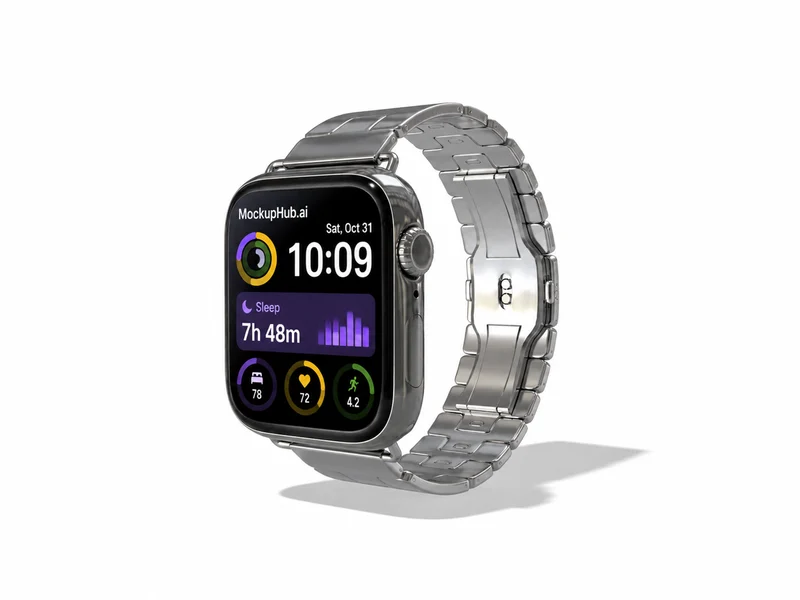
Templates you can work with
46mm Apple Watch Hermès
Inspect watch-face artwork in the 46mm Hermès frame. Compare its scale against the fixed device appearance and visible strap.
View template49mm Apple Watch Ultra 2
Use the 49mm Ultra 2 frame for a watch-face presentation. Check small numerals inside the device boundary at the final viewing size.
View templateHow to choose a smartwatch mockup
Fit the rounded watch screen
Choose a smartwatch mockup by the named case and rounded display boundary. The Hermès and Ultra shapes frame the same interface differently. Keep the main number or status away from corners, even when the source looks clear at artboard size.
Inspect a straight view for clipping before rotating the watch. Review the layout at the final image size, where a larger case alone cannot make small labels readable.
Prepare the screen artwork
Inspect the source image’s padding and background so the screen fills its artwork region correctly. Keep small labels away from rounded corners and check their contrast at the intended viewing size before choosing a decorative angle.
The current templates do not expose separate case, strap-color or hardware material controls. Prepare screen text and colors in the uploaded image, then use the device view to review their placement.
Show a readable interface concept
Show the full case in an overview, adding a close crop only when a small interface detail needs discussion. Keep the principal number readable and use the same interface state in both views. Check the reduced export in its destination.
Test text sizing and interactions on the actual watch or with the platform’s development tools. Keep the original interface files; the presentation image does not create an installable watch face.
Export formats and image dimensions
Use 2K (2048-pixel long edge) for watch-interface presentations, 4K (4096) for larger presentations and 8K (8192) for detailed crops. The other dimension follows your aspect ratio. Start with a sharp upload.
Choose PNG for transparency or crisp edges; JPG for smaller opaque images. Check small text again after resizing or cropping. Check web pixel requirements or the printer’s PPI for printed presentations. Your smartwatch mockup is a presentation image. Keep original interface files for development and interaction tests.
Common uses for this collection
Present a glanceable activity summary in a watch frame.
Compare a large numeral against a rounded display boundary.
Review an Ultra-style device view for a product slide.
Prepare a watch-interface image for a design portfolio.
Check whether a small status label survives the final image crop.
Frequently asked questions
Which smartwatch mockup fits my project?
Compare the named Hermès and Ultra watch shapes, then check the rounded display boundary. Keep the main number or status label readable at the final image size rather than designing only at an enlarged artboard scale.
What can I edit in a smartwatch mockup?
Upload your interface image to the screen artwork area. These device templates do not offer hardware material or separate case-color controls; prepare the screen background, text and icons in your source image.
How large should the main number be in a watch mockup?
Judge it at the final image size with the whole case visible. Keep the principal value readable before adding smaller labels near the rounded display corners.
How do I compare cases in a wearable mockup?
Match the named case shape to the intended device and use a clear front view. Keep the interface proportions intact while checking how each display boundary frames the content.
Why are edge labels clipped in a watch face mockup?
Inspect the source image padding and keep small status text clear of rounded corners. Check a front view before rotating, since an angle can hide clipping near the screen edge.
How can I keep a small status label readable?
Use a clear hierarchy with the most useful information away from rounded corners. Check the image at presentation size and test the original interface on the target device; decorative perspective can hide labels that look clear in a front view.
Preview smartwatch mockups with your own artwork and compare the result from a readable angle. Choose a matching template to start your design.