
Templates you can work with
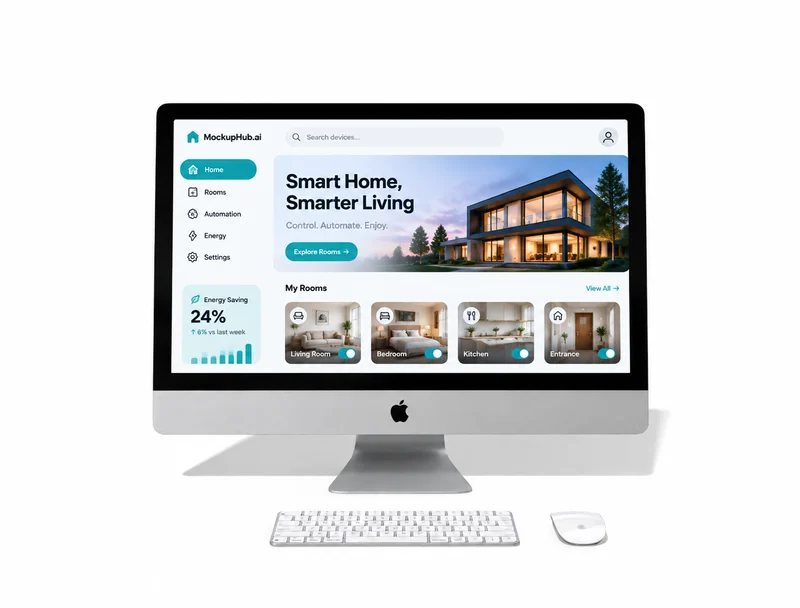
27-Inch iMac Desktop
Place your interface on this device’s artwork surface. Check the screen proportions before exporting a view.
View templateHow to choose a desktop mockup
Match the wide display
Choose a desktop mockup by the wide screen boundary. Capture the website at a matching viewport before placing it, keeping navigation and the main heading clear of the screen edges. Preserve the screenshot’s proportions instead of stretching the page.
Use a near-front view to inspect cropping and small labels. Rotate afterward for context, checking that the angled display still gives the important interface content enough visible space.
Keep interface text readable
Check small menu labels at the final portfolio-card size before deciding how much computer to include. Remove unintended browser bars and blank screenshot margins in the source image, then inspect the screen boundary for clipping.
The available controls apply the uploaded interface to the display; they do not provide separate hardware materials or case colors. Keep the review focused on screenshot placement, background and text contrast.
Choose a clear dashboard view
Keep the page heading and navigation readable in an overview. Show enough computer to identify the desktop context, then add a closer crop when a dashboard chart or small control needs discussion. Use the same interface state in both views.
Review the image at its actual slide or portfolio size. Check responsive behavior and interactions separately in the live interface, keeping the original design files for development.
Export formats and image dimensions
Use 2K (2048-pixel long edge) for website presentations, 4K (4096) for larger presentations and 8K (8192) for detailed crops. The other dimension follows your aspect ratio. Start with a sharp upload.
Choose PNG for transparency or crisp edges; JPG for smaller opaque images. Check small text again after resizing or cropping. Check web pixel requirements or the printer’s PPI for printed presentations. Your desktop mockup is a presentation image. Keep original interface files for development and interaction tests.
Common uses for this collection
Present a desktop analytics dashboard for a client review.
Show a landing page inside a recognizable all-in-one computer.
Prepare a transparent monitor cutout for a proposal slide.
Compare two navigation layouts using the same camera angle.
Review a desktop screenshot’s crop before publishing a portfolio.
Frequently asked questions
Which desktop mockup fits my project?
The current desktop model is a 27-inch iMac. Match the screenshot’s proportions to its display, keeping the page heading and navigation inside the screen instead of stretching a narrower browser capture across it.
What can I edit in a desktop mockup?
Upload your interface image to the screen artwork area. These device templates do not offer hardware material or separate case-color controls; prepare the screen background, text and icons in your source image.
How do I fit a dashboard inside a desktop computer mockup?
Capture the dashboard at proportions that match the selected display and inspect a near-front view. Keep the navigation and page heading clear of the screen edges before adjusting the camera.
How much hardware should I show in a monitor mockup?
Leave enough frame visible to identify the desktop context without shrinking the interface too far. Add a close view when a chart or small control needs its own readable detail.
How do I remove unwanted margins in a website screen mockup?
Check the source screenshot for browser bars or blank padding before upload. Prepare a cleaner capture and inspect the full screen boundary instead of stretching the website to fill the gap.
Should I show the whole computer or a closer crop?
Keep the whole computer when the product context matters, then use a closer view for small dashboard labels. Check the image at its final portfolio or slide size so the hardware does not overwhelm the interface.
Preview desktop mockups with your own artwork and compare the result from a readable angle. Choose a matching template to start your design.