

Templates you can work with
8-Inch Plant Pot with Saucer
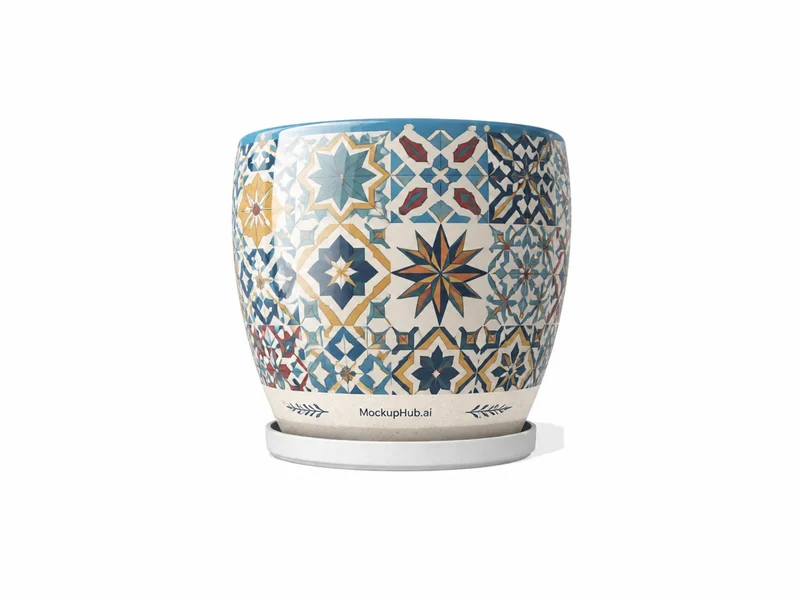
Review a pattern on the 8-inch pot and saucer. Compare matte and glossy ceramic-style appearances around the curved decoration.
View template10-Inch Plant Pot with Saucer
Use the 10-inch pot for a larger planter presentation. Check the relationship between the body artwork and its matching saucer.
View templateHow to choose a planter mockup
Fit the motif between rim and tray
Choose a planter mockup by the upper diameter, tapered wall and saucer. Those boundaries determine where a repeat stays visible and how a front mark sits beneath the rim. Compare the shape with the actual pot before sizing the decoration.
Preserve the motif’s proportions and rotate to inspect the side. Keep essential text off the lower curve, using the supplier’s usable surface dimensions to confirm the final placement.
Compare the pot and saucer colors
Hold the motif steady while comparing the ceramic appearance. Inspect thin lines beneath the rim and where the wall tapers, then check the design at the final product-card size. Reflections can hide a pale edge in an angled view.
Compare available tray or inner-liner colors separately from the artwork. Prepare transparent margins in the upload where the ceramic should remain visible around the decoration rather than an opaque rectangle.
Check the curved decoration area
Keep the complete pot and saucer visible when reviewing the repeat. Add a closer view beneath the rim for small details, using matching camera directions across colorways. The overview should still show how the motif fits the tapered form.
Send the maker original decoration artwork and actual surface measurements. Confirm the print or transfer process and inspect a sample for the physical ceramic finish, color and edge detail.
Export formats and image dimensions
Use 2K (2048-pixel long edge) for planter listings, 4K (4096) for larger presentations and 8K (8192) for detailed crops. The other dimension follows your aspect ratio. Start with a sharp upload.
Choose PNG for transparency or crisp edges; JPG for smaller opaque images. Check small text again after resizing or cropping. Check web pixel requirements or the printer’s PPI for printed presentations. Your planter mockup is a presentation image. Supply original decoration artwork and usable surface dimensions separately.
Common uses for this collection
Compare a botanical motif on two ceramic pot sizes.
Review a contrasting saucer against the main pot color.
Check a repeated pattern beneath the upper rim.
Prepare a plant-shop gift collection presentation.
Show a decorator the intended front of a curved pot design.
Frequently asked questions
Which planter mockup fits my project?
Use a ceramic pot and saucer whose proportions match your product. Check how the body narrows toward the base and where the tray interrupts the wall before choosing the motif’s size and front-facing position.
What can I edit in a planter mockup?
Upload your design to the template’s artwork area. Check its available tray and body color controls and material presets before editing; a product-color change is separate from the graphic saved in your image.
How do I keep a motif below the rim in a flower pot mockup?
Place the main detail on the readable wall and leave room beneath the upper lip. Turn the pot to inspect the taper before making the repeat larger.
How do I compare sizes in a plant pot mockup?
Keep the whole pot and saucer visible with similar camera directions. Compare the motif against each pot’s proportions rather than stretching one design to fill both surfaces.
How do I compare finishes in a ceramic planter mockup?
Hold the motif and camera steady while trying the available ceramic appearances. Inspect pale edges beside reflections, then check the image at its final product-card size.
How do I make a repeat look balanced around the pot?
Choose the repeat spacing for the real pot’s dimensions and preserve each motif’s proportions. Inspect the front, back and lower wall through rotation, leaving key details above the tray and below the rim.
Preview planter mockups with your own artwork and compare the result from a readable angle. Choose a matching template to start your design.