

Templates you can work with
Beverage Can Koozie
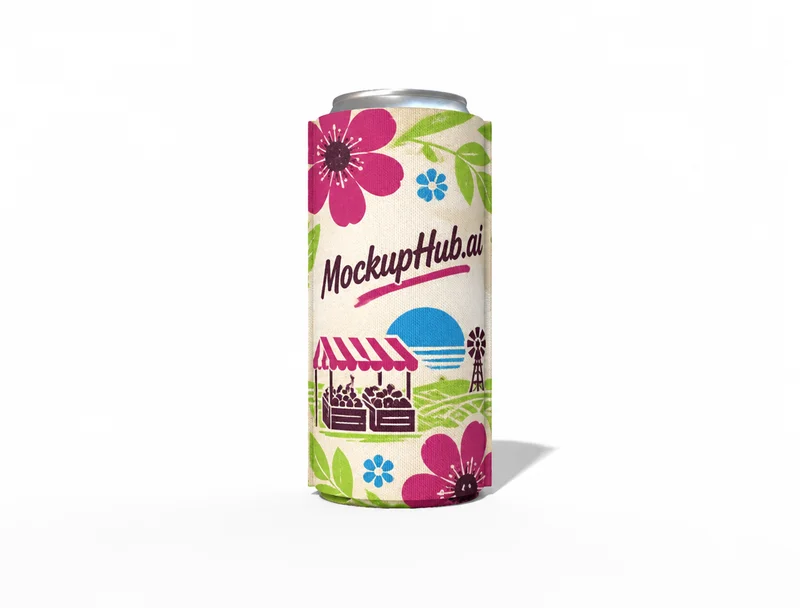
Use the standard beverage sleeve for a compact front logo or event name. Check the cotton appearance and stitching with the can top exposed above the sleeve.
View templateTall Beer Can Koozie Sleeve
Choose the taller beer-can sleeve when the design needs that upright shape. Compare its rubber appearance with the can, lid and pull-tab colors around the graphic.
View templateHow to choose a koozie mockup
Match the can and sleeve height
Choose a koozie mockup by the sleeve height and the amount of can exposed above it. Standard and taller versions give a logo different surrounding space. Keep the top visible while matching the shape to your merchandise.
Preserve the graphic’s proportions and rotate to inspect the side join. Compare the sleeve’s usable print area with the supplier’s layout before deciding how large the finished design should be.
Separate the sleeve from the can
Keep the sleeve graphic fixed while comparing available can, lid and pull-tab colors. Those details frame the printed area, but changing them leaves the uploaded artwork unchanged. Check thin lettering near the sleeve’s curved side.
Use transparent artwork where the sleeve should show around the logo. Review the image at store-card size to spot a background rectangle or a pale edge that becomes hard to read.
Check the message at product scale
Show the full sleeve around its matching can with the top exposed. This makes standard and taller versions easy to distinguish. Keep the same angle across color variations, adding a closer graphic view when small lettering needs attention.
Give the supplier separate artwork sized to the actual sleeve. Confirm seam and edge restrictions, then inspect a physical sample for the decoration and fit before approving the merchandise order.
Export formats and image dimensions
Use 2K (2048-pixel long edge) for drink-sleeve listings, 4K (4096) for larger presentations and 8K (8192) for detailed crops. The other dimension follows your aspect ratio. Start with a sharp upload.
Choose PNG for transparency or crisp edges; JPG for smaller opaque images. Check small text again after resizing or cropping. Check web pixel requirements or the printer’s PPI for printed presentations. Your koozie mockup is a presentation image. Supply original decoration artwork and product-specific print dimensions separately.
Common uses for this collection
Compare sponsor logos around a standard beverage sleeve.
Review a wedding message on a tall beer-can cooler.
Check artwork clearance beside a sleeve seam.
Prepare an event shop image with the correct exposed can height.
Present contrasting sleeve and can colors for a beverage campaign.
Frequently asked questions
Which koozie mockup fits my project?
Compare the standard beverage sleeve and taller beer-can option. Match the exposed can height and visible sleeve panel to the blank you plan to order, keeping the main wording clear of the seam.
What can I edit in a koozie mockup?
Upload your design to the template’s artwork area. Check its available lid, body and stitching color controls and material presets before editing; a product-color change is separate from the graphic saved in your image.
How do I choose the sleeve height in a can cooler mockup?
Compare the sleeve outline and the amount of exposed can above it with your intended product. Leave the can top visible while judging how much front space the logo needs.
How do I keep an event name readable in a stubby holder mockup?
Place the name on the readable front and keep it clear of the side join. Check a reduced store view before adding small sponsor lines around the sleeve.
Can I compare can and sleeve colors in a drink sleeve mockup?
Use the selected template’s available can, lid and sleeve controls with the graphic held fixed. Inspect whether the surrounding colors separate the printed message from the exposed can.
Can I wrap wording all the way around the sleeve?
Test the model’s artwork region and inspect the back join through rotation. Ask the blank supplier whether its printing stops at the seam, then keep the main event name readable in the chosen front view.
Preview koozie mockups with your own artwork and compare the result from a readable angle. Choose a matching template to start your design.